

Default Settings: When a new assistant is created, both the Auto Call-End on Hold and Leave Voicemail Message features are turned off by default.
Navigating to the Settings
To access these features, follow these steps:1
Select Your Assistant
From the left-hand panel, go to Assistants and click on the specific assistant you want to configure.
2
Open Voicemail & On-hold
Navigate to the Settings tab. Inside this menu, click on Voicemail & On-hold to open the configuration page.
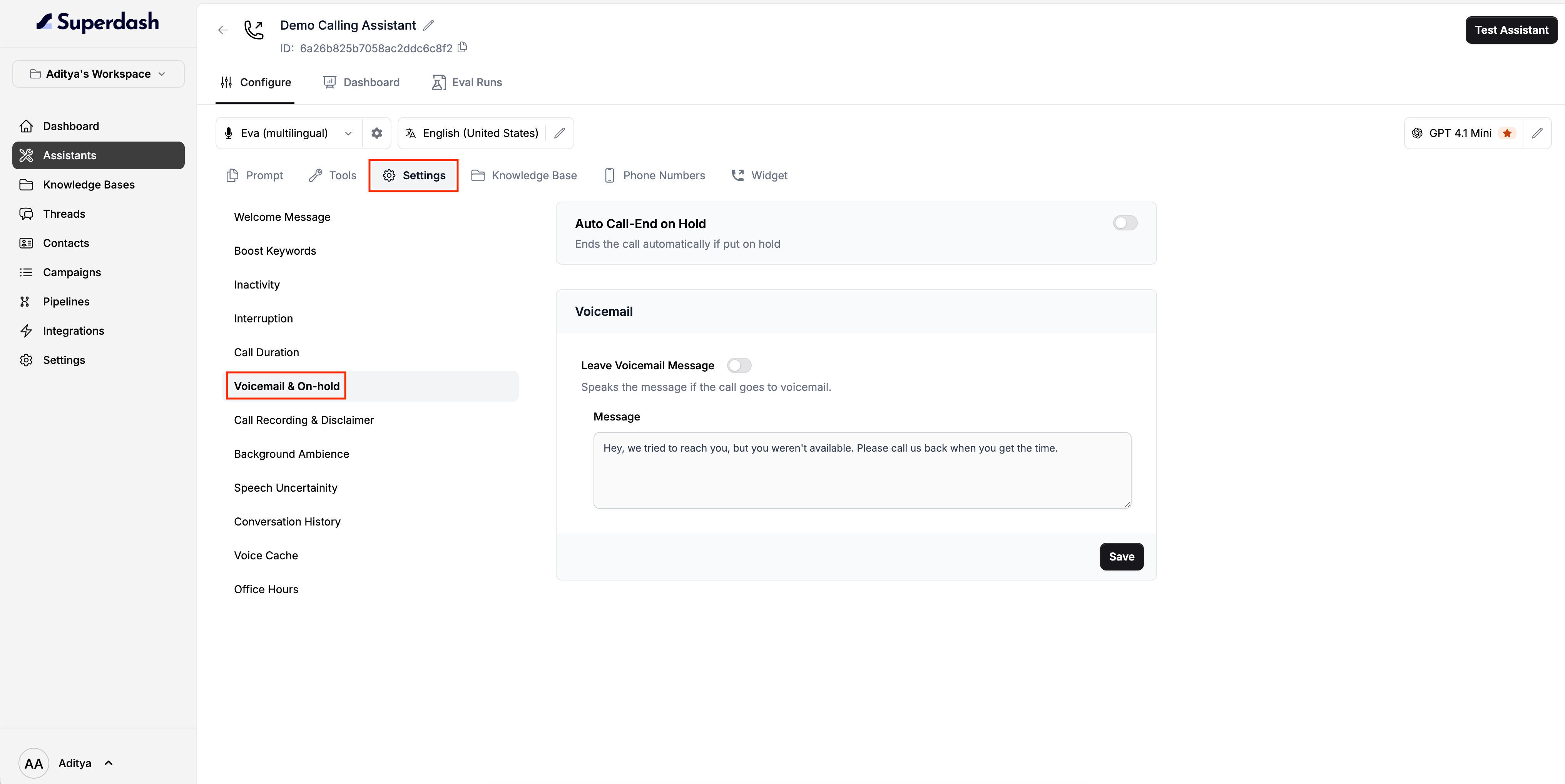
Auto Call-End on Hold
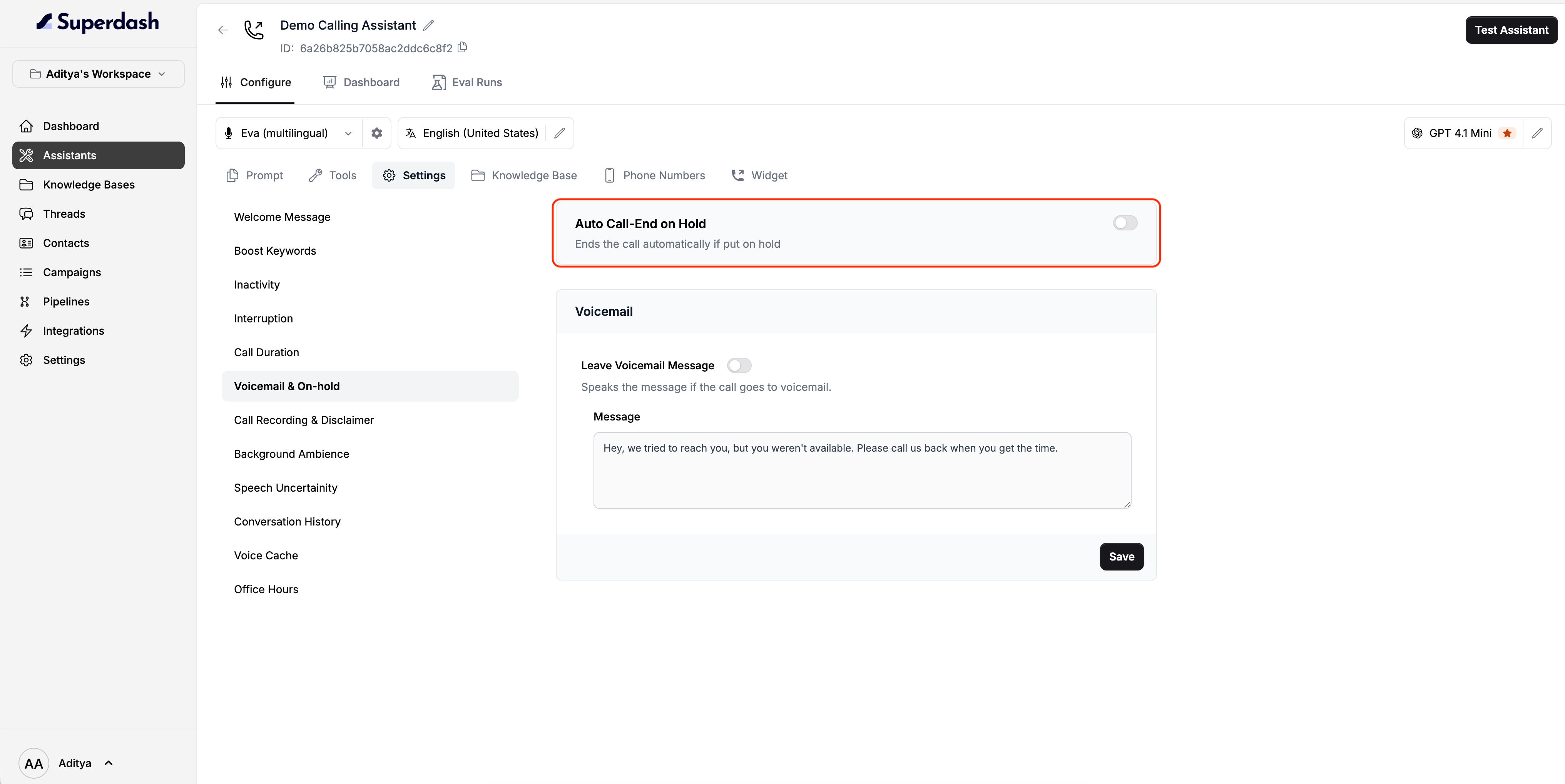
The first option on the page allows you to control the assistant’s behavior when the person on the other end puts the call on hold.- Toggle Auto Call-End on Hold to the On position.
- If enabled, the assistant will automatically end the call as soon as it detects that it has been placed on hold.
Voicemail Settings
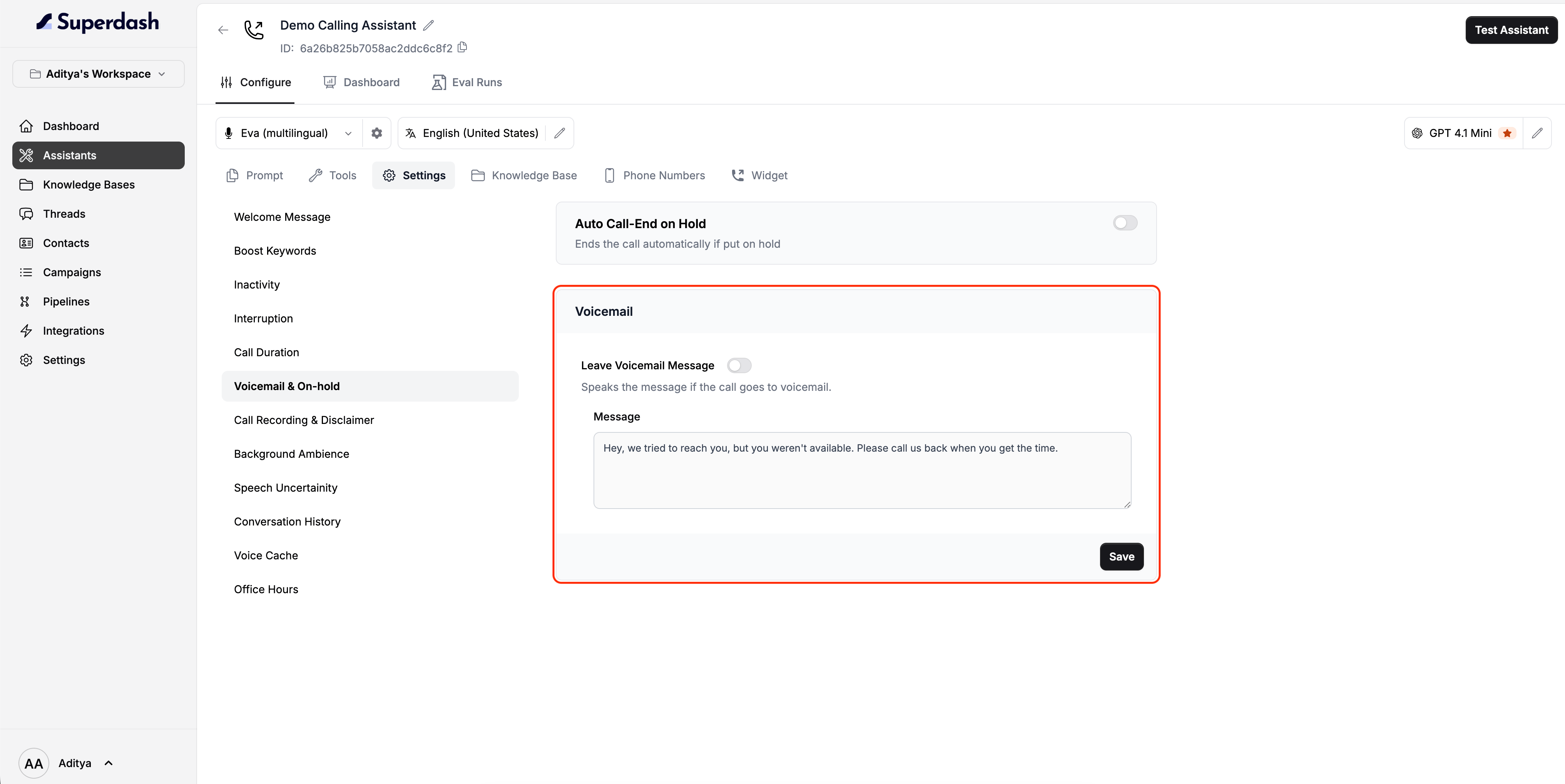
Directly below the hold settings, you will find the Voicemail section. Here, you can define what the assistant says if it reaches an answering machine.1
Enable the Feature
Turn on the Leave Voicemail Message toggle. When enabled, the assistant will wait for the beep, speak your configured message, and then automatically end the call.
2
Configure Your Message
In the Message box located below the toggle, type the exact script you want your assistant to leave on the recording.By default, this message is set to:
“Hey, we tried to reach you, but you weren’t available. Please call us back when you get the time.”
3
Save Your Changes
Once you are happy with your settings and custom message, click the Save button to update your assistant.