

How to Configure End Call Triggers
Follow these steps to set up an end call trigger for your assistant:1
Select Your Assistant
Select Assistants from the left navigation panel and click on the specific Voice Assistant you want to configure.
2
Open End Call Triggers
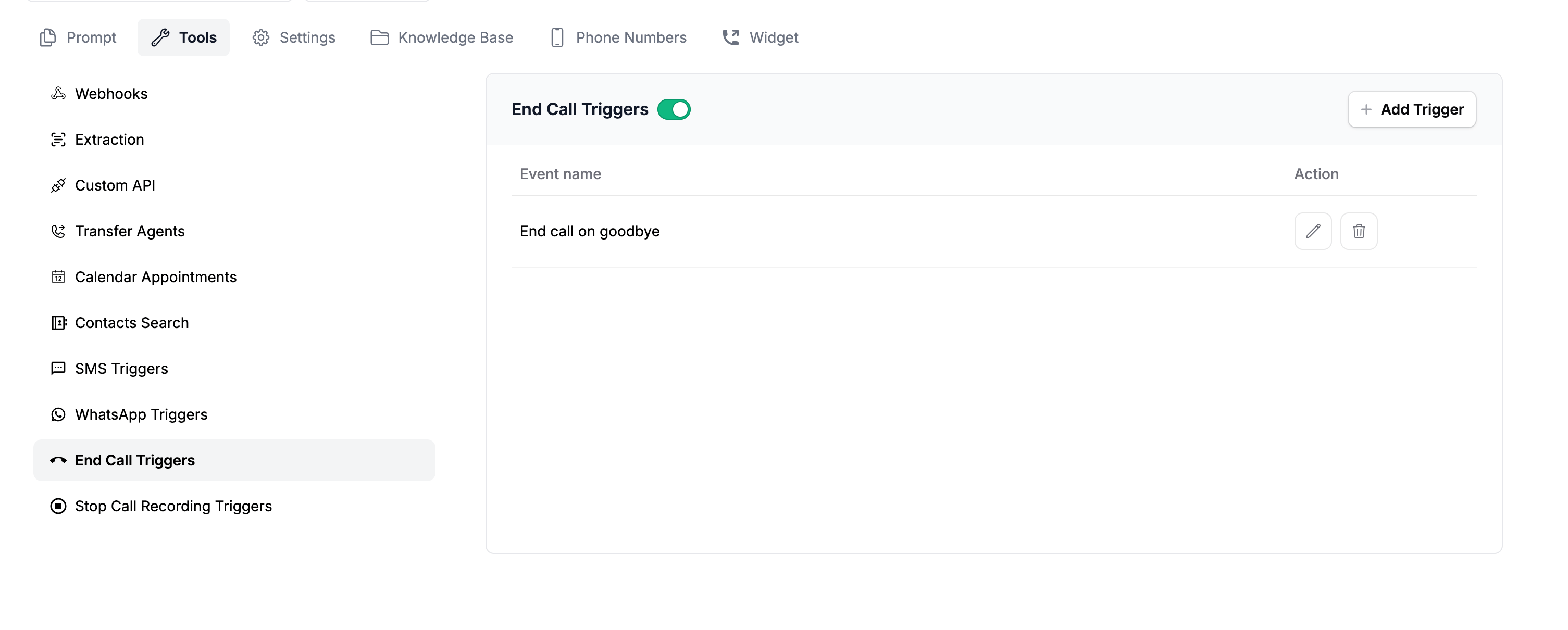
Navigate to the Tools tab. Select End Call Triggers and toggle the feature On.
3
Configure the Trigger
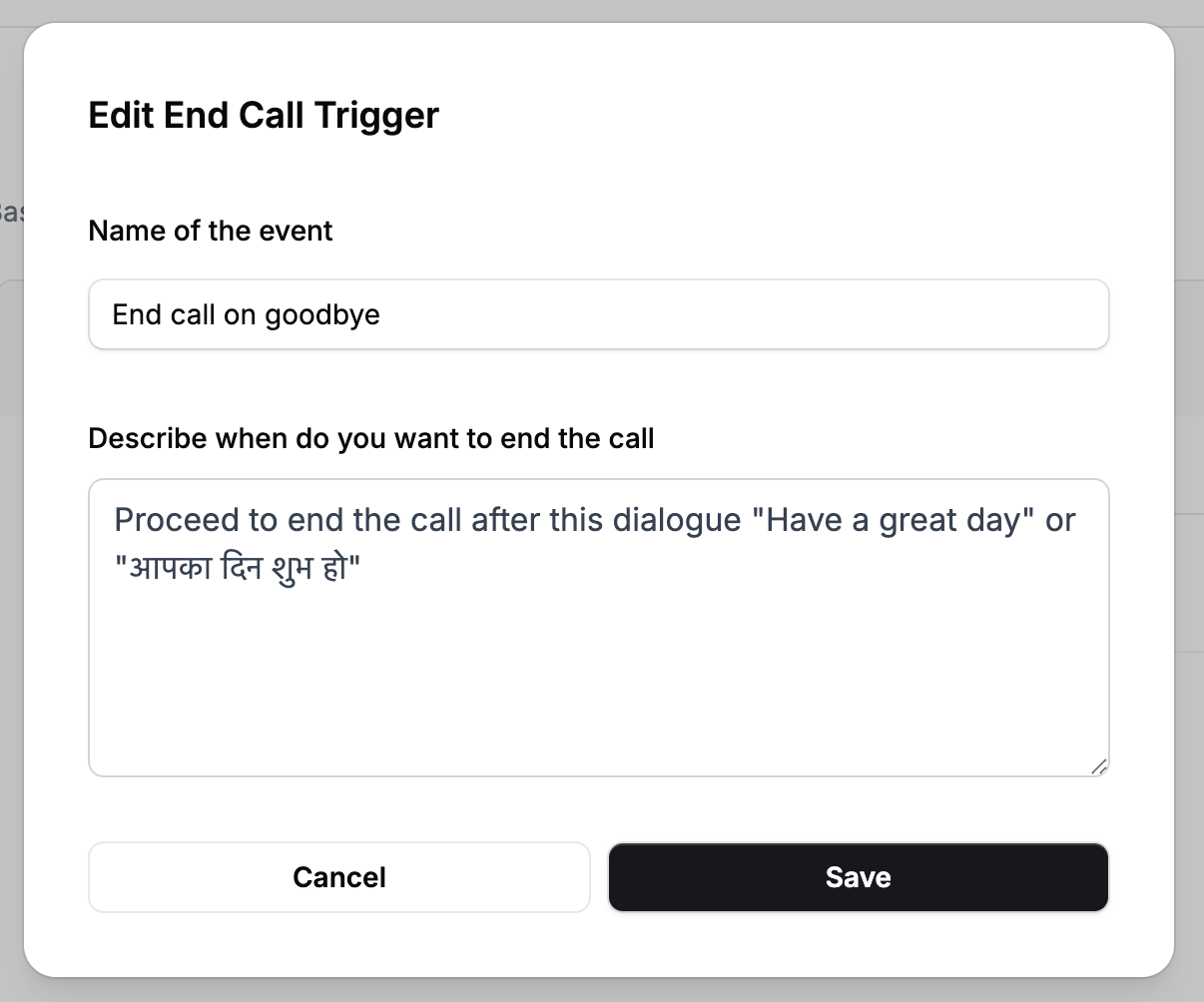
Click the Add Trigger button. Provide a name for your event (e.g., “Standard Goodbye”). In the “Describe when do you want to end the call” box, define the specific event in plain human language.
4
Save
Click Save to apply your changes.
Examples & Best Practices
When describing when you want the call to end, be as specific as possible. Here are a few common scenarios:1. Specific Closing Phrases
If your assistant’s prompt includes a standard sign-off or closing statement, you can tie the trigger directly to that dialogue.
Scenario: Your assistant is instructed to say this closing statement, “Thank You for reaching out, have a great day.”
Trigger Description: Proceed to end the call after this dialogue "have a great day".
2. Handling Multiple End Scenarios
Conversations can end in various ways. If you have multiple distinct scenarios where the call should drop (e.g., the user says goodbye, or the user refuses to provide information), you can define multiple triggers by clicking “Add Trigger” for each unique scenario.3. Multilingual Support
If your assistant speaks multiple languages (e.g., English and Hindi), you can combine the triggers like adding “or” in your description so the AI checks for both.
Scenario: Your assistant might say a closing phrase in either English or Hindi.
Trigger Description: Proceed to end the call after this dialogue "have a great day" or "आपका दिन शुभ हो".