> ## Documentation Index
> Fetch the complete documentation index at: https://docs.superdash.ai/llms.txt
> Use this file to discover all available pages before exploring further.
# Webhooks
> Learn how to configure webhooks to automatically push post-call data to your preferred URL or API.
Webhooks allow you to automatically send data from your assistants to external servers or applications. Once configured, your webhook is triggered every time a call ends, pushing the extracted payload directly to your specified endpoint.
## Configuration Steps
From the **left panel**, click on **Assistants** and select the specific assistant you want to configure.
Under the assistant's settings, go to the **Tools** tab and select **Webhooks**.
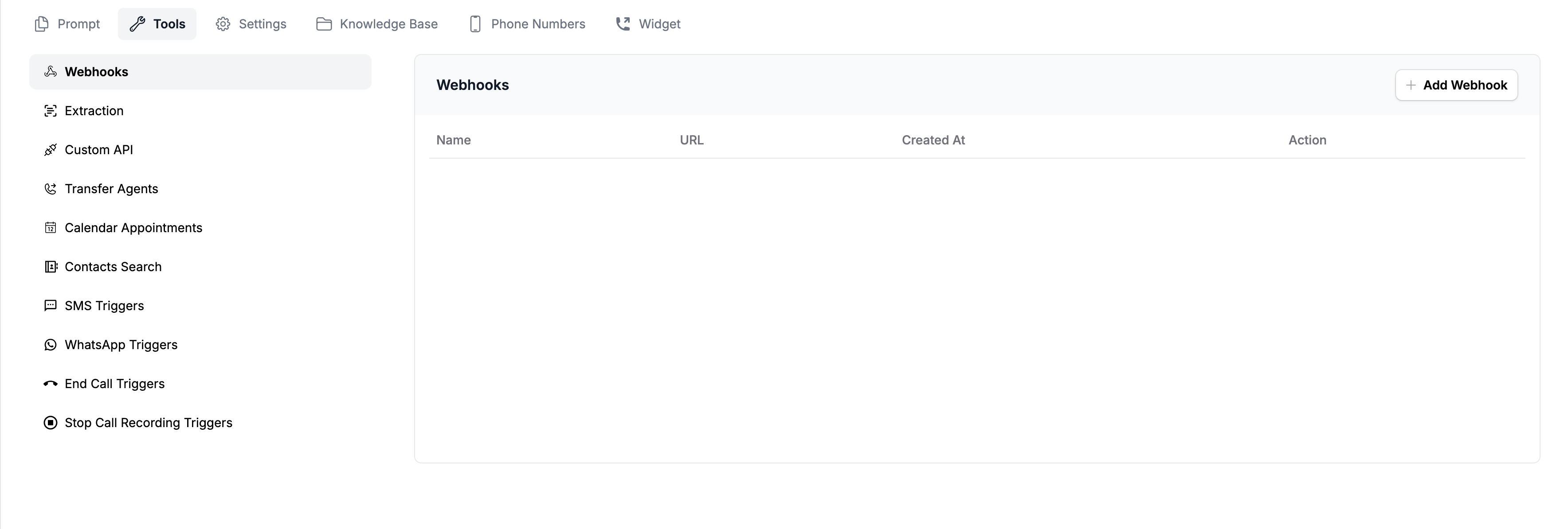 Click the **Add Webhook** button. A configuration window will appear.
Fill in the core destination details:
* **Name:** A descriptive name for your webhook (this can be anything you choose to help you identify it).
* **Webhook URL:** The API URL or endpoint where you want the data to be pushed.
If your receiving webhook or API requires authentication, toggle **Authorization** on. This will reveal two additional fields:
* **Header:** Enter the name of the expected header (e.g., `Authorization`, `x-api-key`).
* **Key:** Enter your secure token or API key.
Click **Add** to finalize. Your webhook is now active and ready to use.
***
## How It Works
**Post-Call Trigger:** For every call handled by this assistant, the webhook will automatically trigger immediately after the call ends. The extracted payload from the conversation will be pushed directly to your configured URL.
Click the **Add Webhook** button. A configuration window will appear.
Fill in the core destination details:
* **Name:** A descriptive name for your webhook (this can be anything you choose to help you identify it).
* **Webhook URL:** The API URL or endpoint where you want the data to be pushed.
If your receiving webhook or API requires authentication, toggle **Authorization** on. This will reveal two additional fields:
* **Header:** Enter the name of the expected header (e.g., `Authorization`, `x-api-key`).
* **Key:** Enter your secure token or API key.
Click **Add** to finalize. Your webhook is now active and ready to use.
***
## How It Works
**Post-Call Trigger:** For every call handled by this assistant, the webhook will automatically trigger immediately after the call ends. The extracted payload from the conversation will be pushed directly to your configured URL.