> ## Documentation Index
> Fetch the complete documentation index at: https://docs.superdash.ai/llms.txt
> Use this file to discover all available pages before exploring further.
# Voicemail & On-hold
> Configure how your AI assistant handles being put on hold or reaching a voicemail.
You can customize your AI calling assistant to automatically detect when a call goes to voicemail or is placed on hold, and dictate exactly how it should respond.
**Default Settings:** When a new assistant is created, both the **Auto Call-End on Hold** and **Leave Voicemail Message** features are **turned off** by default.
## Navigating to the Settings
To access these features, follow these steps:
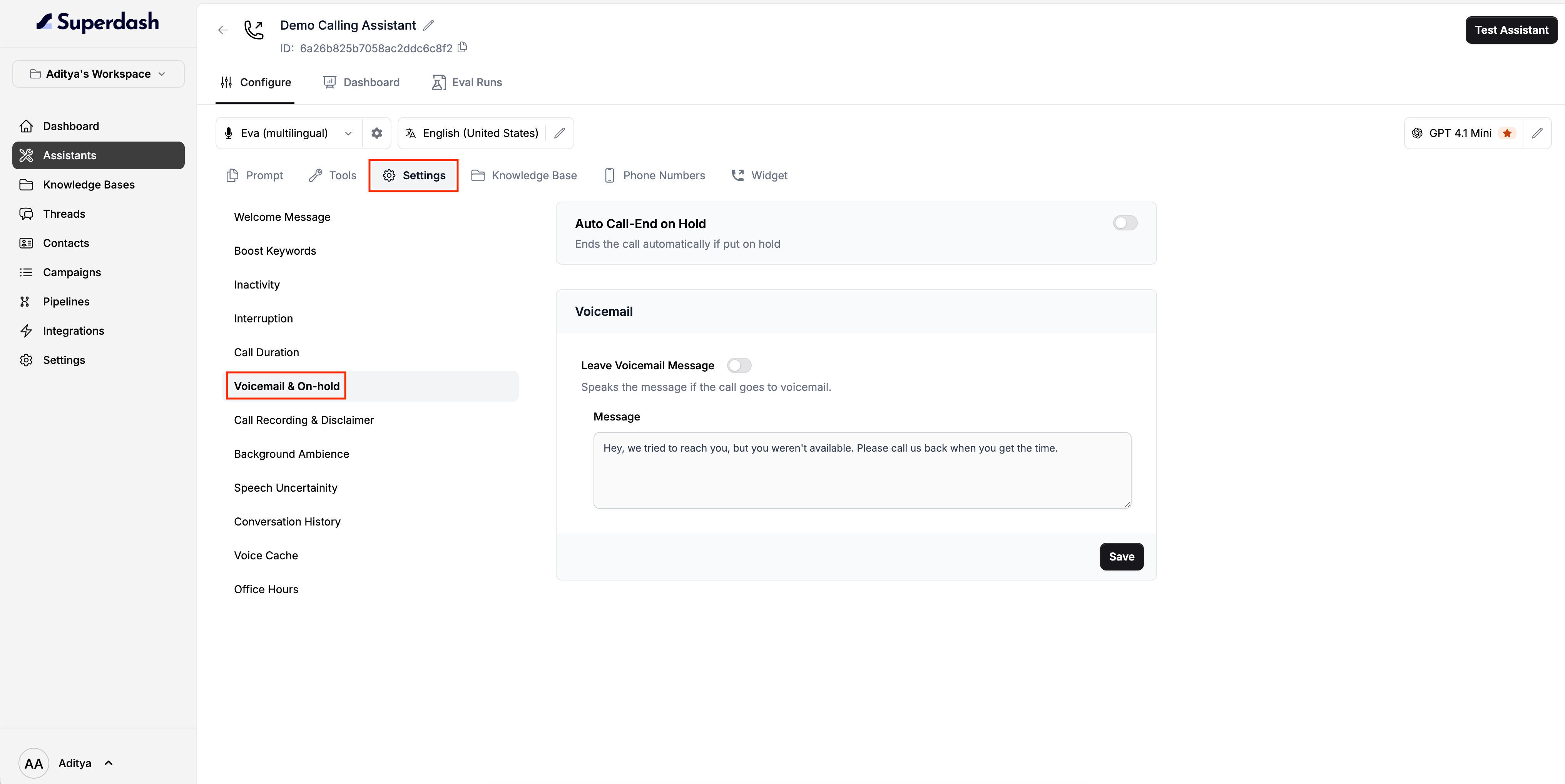
From the left-hand panel, go to **Assistants** and click on the specific assistant you want to configure.
Navigate to the **Settings** tab. Inside this menu, click on **Voicemail & On-hold** to open the configuration page.
 ***
## Auto Call-End on Hold
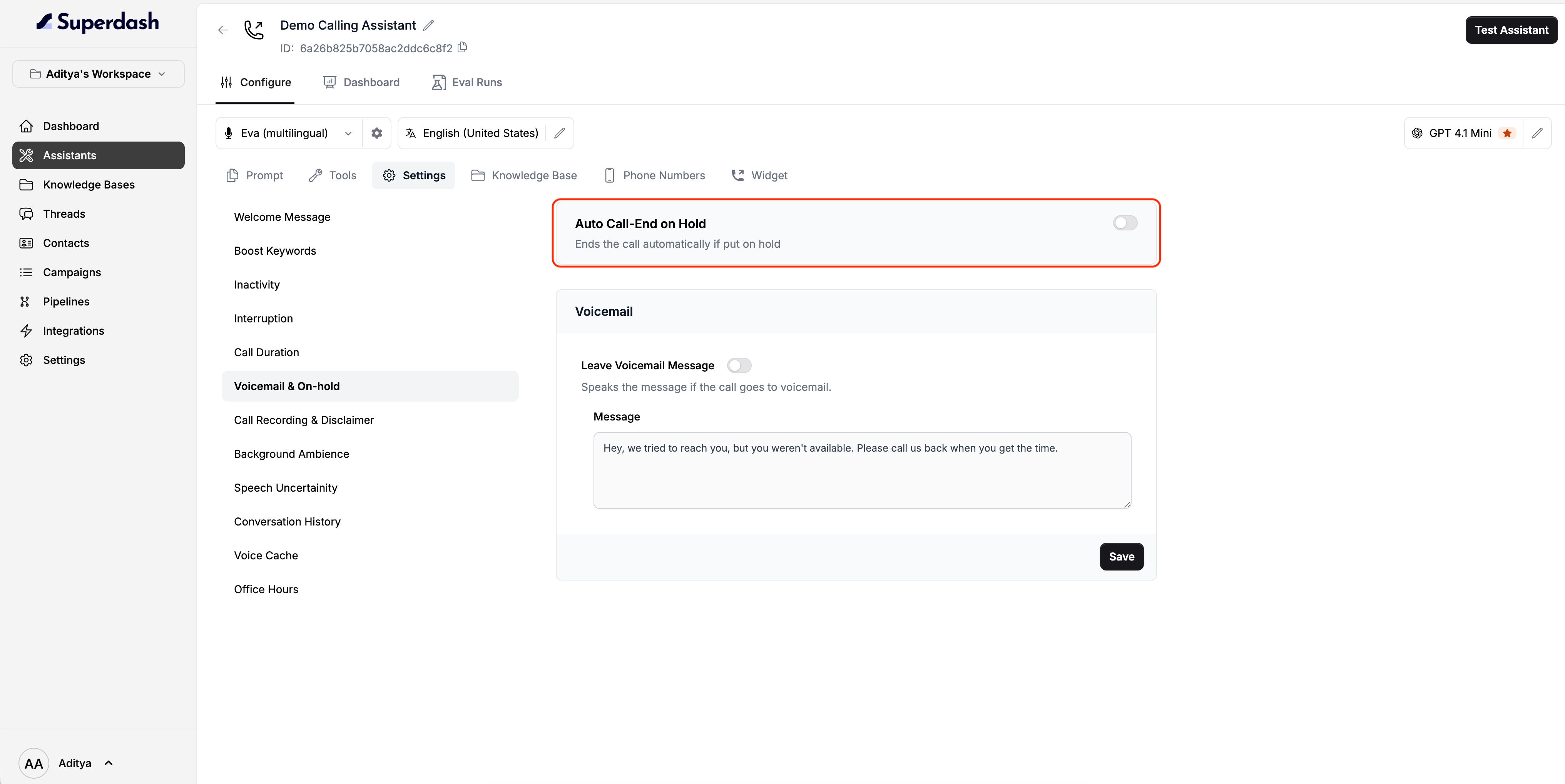
The first option on the page allows you to control the assistant's behavior when the person on the other end puts the call on hold.
* Toggle **Auto Call-End on Hold** to the **On** position.
* If enabled, the assistant will automatically end the call as soon as it detects that it has been placed on hold.
***
## Auto Call-End on Hold
The first option on the page allows you to control the assistant's behavior when the person on the other end puts the call on hold.
* Toggle **Auto Call-End on Hold** to the **On** position.
* If enabled, the assistant will automatically end the call as soon as it detects that it has been placed on hold.
 ***
## Voicemail Settings
Directly below the hold settings, you will find the **Voicemail** section. Here, you can define what the assistant says if it reaches an answering machine.
Turn on the **Leave Voicemail Message** toggle. When enabled, the assistant will wait for the beep, speak your configured message, and then automatically end the call.
***
## Voicemail Settings
Directly below the hold settings, you will find the **Voicemail** section. Here, you can define what the assistant says if it reaches an answering machine.
Turn on the **Leave Voicemail Message** toggle. When enabled, the assistant will wait for the beep, speak your configured message, and then automatically end the call.
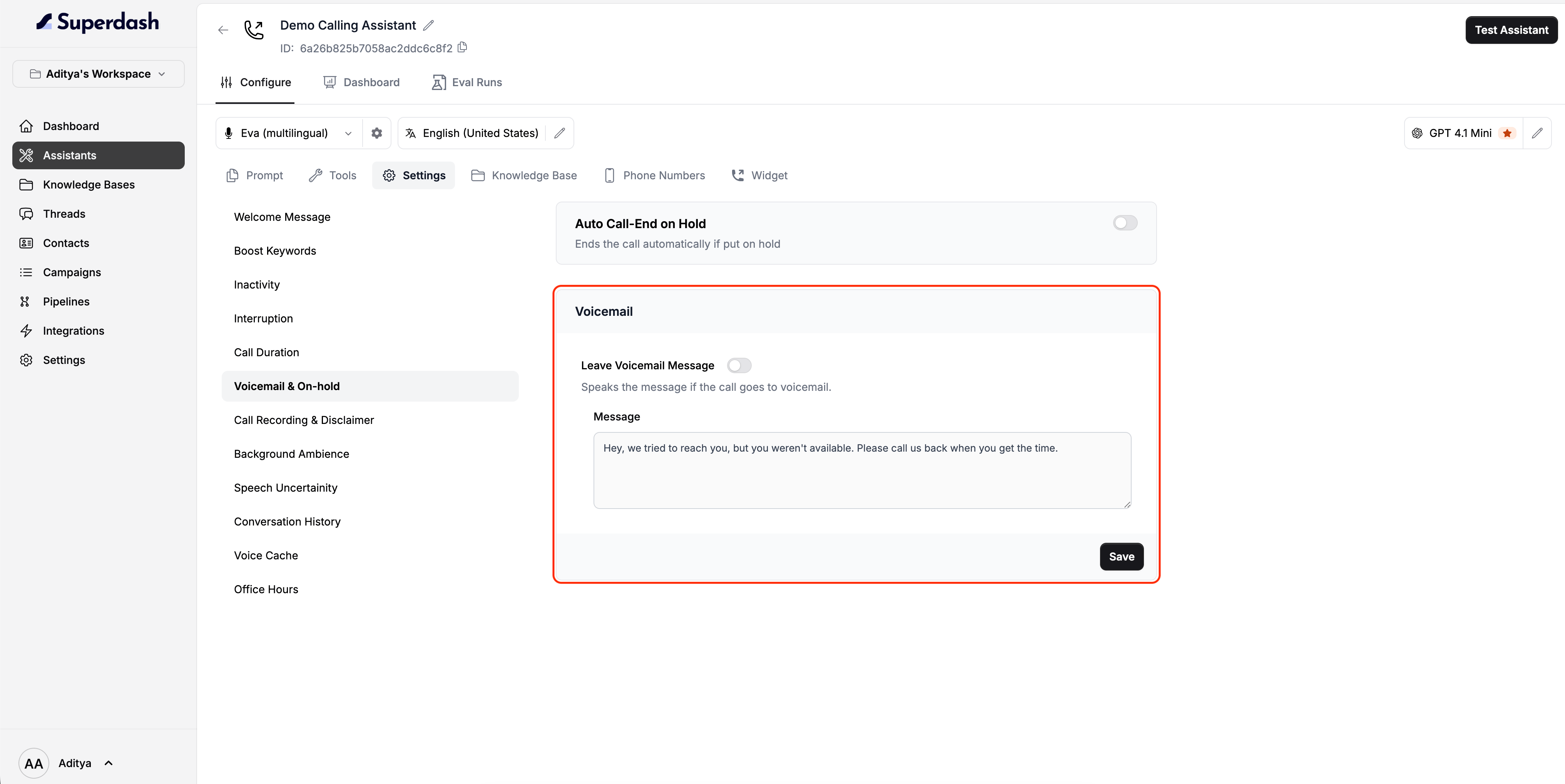 In the **Message** box located below the toggle, type the exact script you want your assistant to leave on the recording.
By default, this message is set to:
> *"Hey, we tried to reach you, but you weren't available. Please call us back when you get the time."*
**Empty Message Behavior:** If the toggle is turned on but no message is set (the box is completely blank), the assistant will simply end the call when a voicemail is detected without speaking a message.
Once you are happy with your settings and custom message, click the **Save** button to update your assistant.
In the **Message** box located below the toggle, type the exact script you want your assistant to leave on the recording.
By default, this message is set to:
> *"Hey, we tried to reach you, but you weren't available. Please call us back when you get the time."*
**Empty Message Behavior:** If the toggle is turned on but no message is set (the box is completely blank), the assistant will simply end the call when a voicemail is detected without speaking a message.
Once you are happy with your settings and custom message, click the **Save** button to update your assistant.