> ## Documentation Index
> Fetch the complete documentation index at: https://docs.superdash.ai/llms.txt
> Use this file to discover all available pages before exploring further.
# End Call Triggers
> Learn how to configure your AI Voice Assistant to automatically end calls based on specific conversational cues or events.
The **End Call Trigger** feature allows you to define exactly when your AI Voice Assistant should automatically hang up. By default, this feature is **turned off**.
When enabled, our AI assistant evaluates the conversation at every turn to check if your specified event has occurred. If the conditions are met, the assistant will automatically end the call, preventing it from running indefinitely or till the configured Call Duration.
***
## How to Configure End Call Triggers
Follow these steps to set up an end call trigger for your assistant:
Select **Assistants** from the left navigation panel and click on the specific **Voice Assistant** you want to configure.
Navigate to the **Tools** tab. Select **End Call Triggers** and toggle the feature **On**.
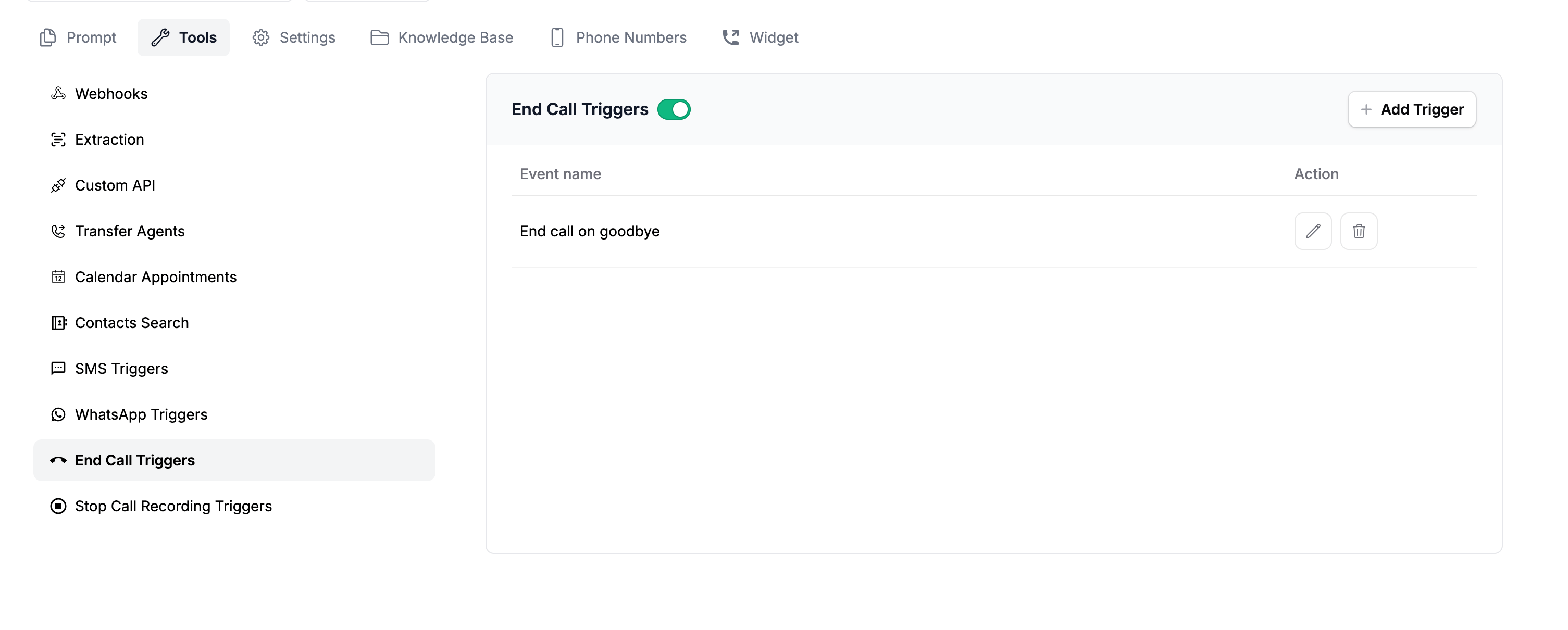 Click the **Add Trigger** button. Provide a name for your event (e.g., "Standard Goodbye"). In the **"Describe when do you want to end the call"** box, define the specific event in plain human language.
Click **Save** to apply your changes.
***
## Examples & Best Practices
When describing when you want the call to end, be as specific as possible. Here are a few common scenarios:
### 1. Specific Closing Phrases
If your assistant's prompt includes a standard sign-off or closing statement, you can tie the trigger directly to that dialogue.
> **Scenario:** Your assistant is instructed to say this closing statement, *"Thank You for reaching out, have a great day."*
>
> **Trigger Description:** `Proceed to end the call after this dialogue "have a great day".`
Click the **Add Trigger** button. Provide a name for your event (e.g., "Standard Goodbye"). In the **"Describe when do you want to end the call"** box, define the specific event in plain human language.
Click **Save** to apply your changes.
***
## Examples & Best Practices
When describing when you want the call to end, be as specific as possible. Here are a few common scenarios:
### 1. Specific Closing Phrases
If your assistant's prompt includes a standard sign-off or closing statement, you can tie the trigger directly to that dialogue.
> **Scenario:** Your assistant is instructed to say this closing statement, *"Thank You for reaching out, have a great day."*
>
> **Trigger Description:** `Proceed to end the call after this dialogue "have a great day".`
 ### 2. Handling Multiple End Scenarios
Conversations can end in various ways. If you have multiple distinct scenarios where the call should drop (e.g., the user says goodbye, or the user refuses to provide information), you can define **multiple triggers** by clicking "Add Trigger" for each unique scenario.
### 3. Multilingual Support
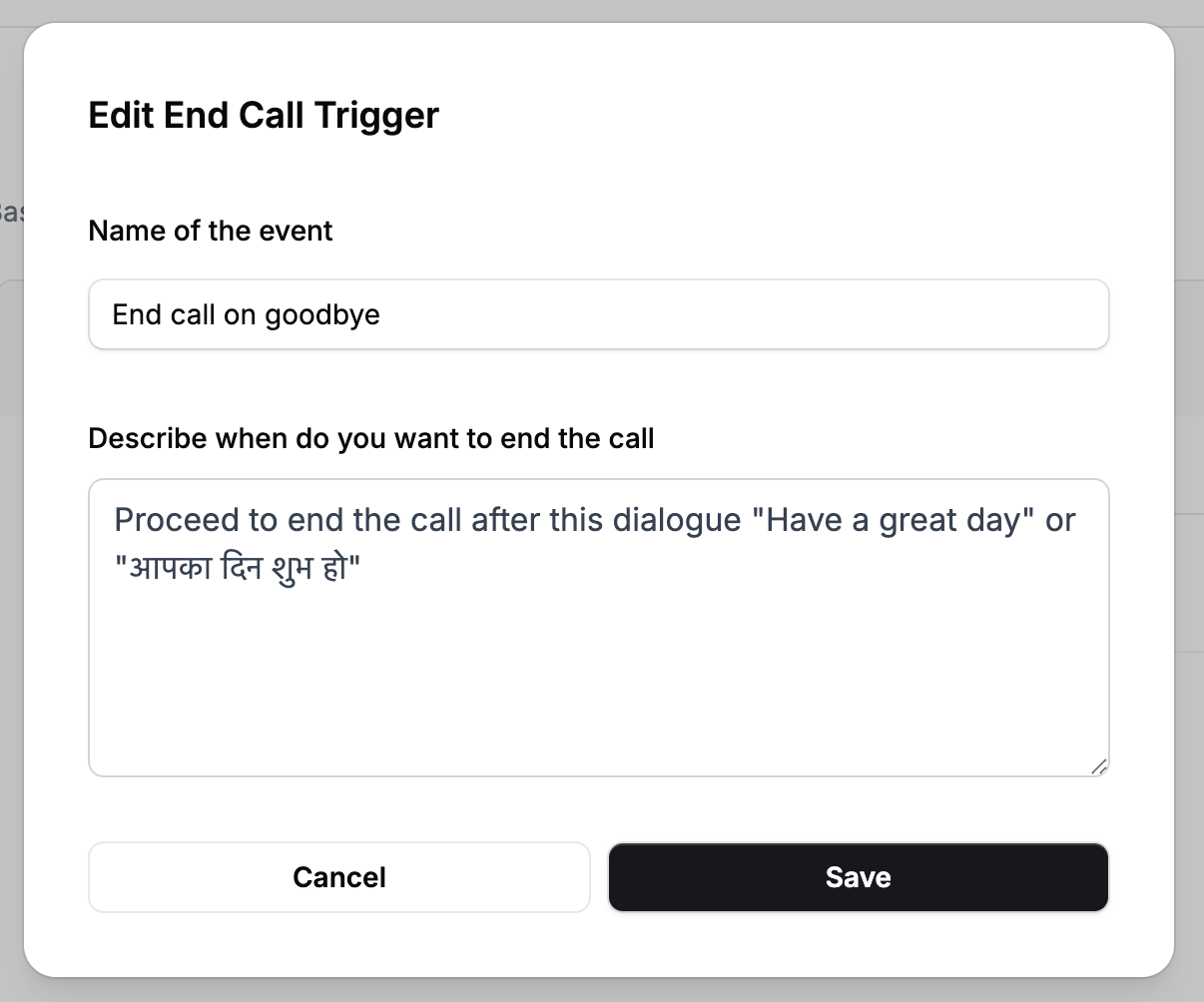
If your assistant speaks multiple languages (e.g., English and Hindi), you can combine the triggers like adding "or" in your description so the AI checks for both.
> **Scenario:** Your assistant might say a closing phrase in either English or Hindi.
>
> **Trigger Description:** `Proceed to end the call after this dialogue "have a great day" or "आपका दिन शुभ हो".`
**Pro Tip:** Because the AI checks this trigger on *every turn*, keeping your trigger descriptions clear and directly tied to specific phrases or user intents will result in the most accurate call terminations.
### 2. Handling Multiple End Scenarios
Conversations can end in various ways. If you have multiple distinct scenarios where the call should drop (e.g., the user says goodbye, or the user refuses to provide information), you can define **multiple triggers** by clicking "Add Trigger" for each unique scenario.
### 3. Multilingual Support
If your assistant speaks multiple languages (e.g., English and Hindi), you can combine the triggers like adding "or" in your description so the AI checks for both.
> **Scenario:** Your assistant might say a closing phrase in either English or Hindi.
>
> **Trigger Description:** `Proceed to end the call after this dialogue "have a great day" or "आपका दिन शुभ हो".`
**Pro Tip:** Because the AI checks this trigger on *every turn*, keeping your trigger descriptions clear and directly tied to specific phrases or user intents will result in the most accurate call terminations.