> ## Documentation Index
> Fetch the complete documentation index at: https://docs.superdash.ai/llms.txt
> Use this file to discover all available pages before exploring further.
# Call Duration
> Learn how to set and manage the maximum call duration for your AI calling assistant.
You can easily control how long your AI assistant is allowed to stay on a single call.
**Default Setting:** By default, all assistants have their call duration set to **10 minutes (600 seconds)**. This limit will remain active unless you manually update it.
## How to Update Call Duration
Follow these steps to adjust the maximum call duration for your assistant:
Open your dashboard and select **Assistants** from the left-hand navigation panel.
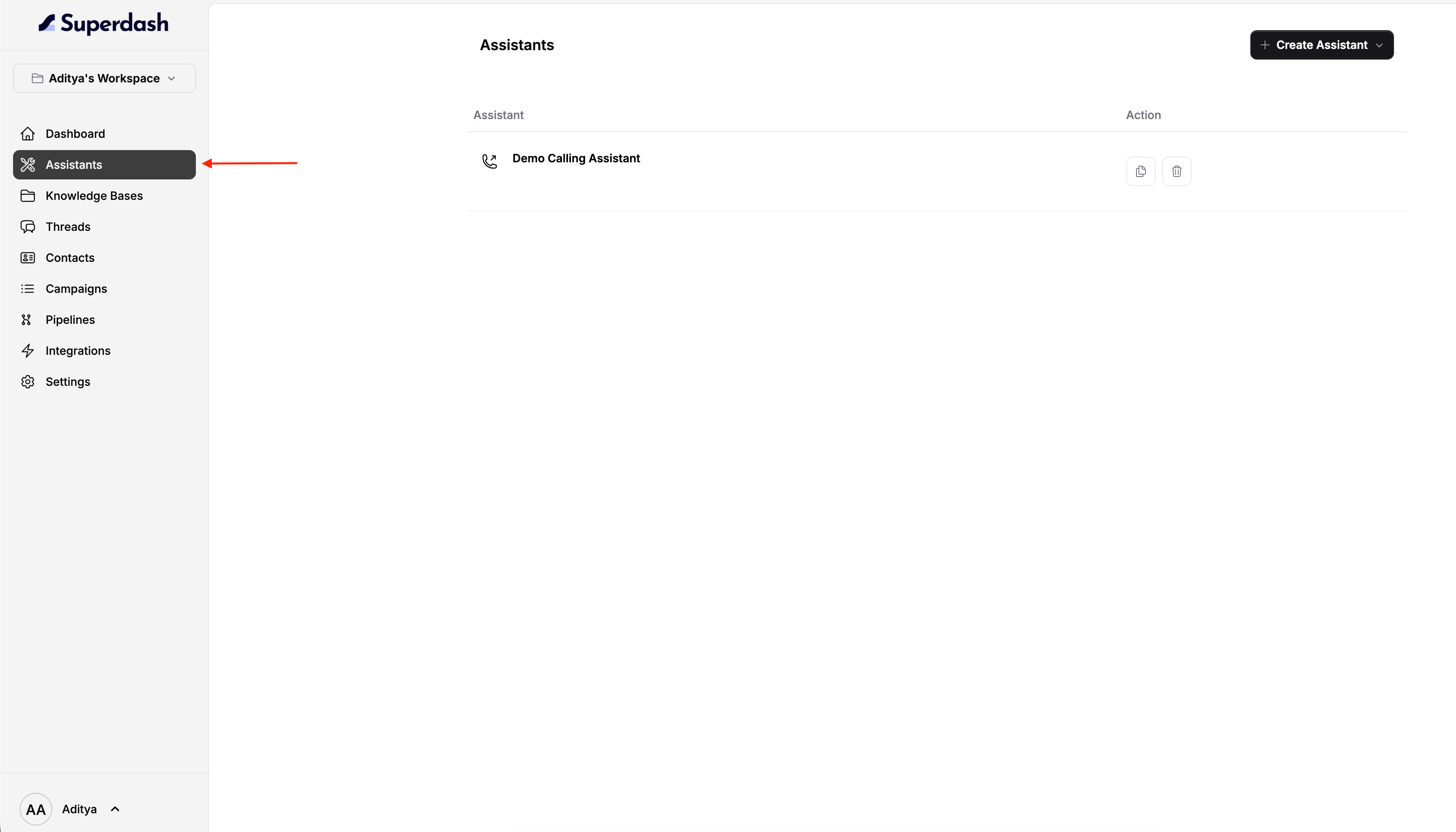 From the list of available assistants, click on the specific assistant you want to configure.
Once the assistant's details are open, navigate to the **Settings** tab. Inside this menu, select the **Call Duration** option.
From the list of available assistants, click on the specific assistant you want to configure.
Once the assistant's details are open, navigate to the **Settings** tab. Inside this menu, select the **Call Duration** option.
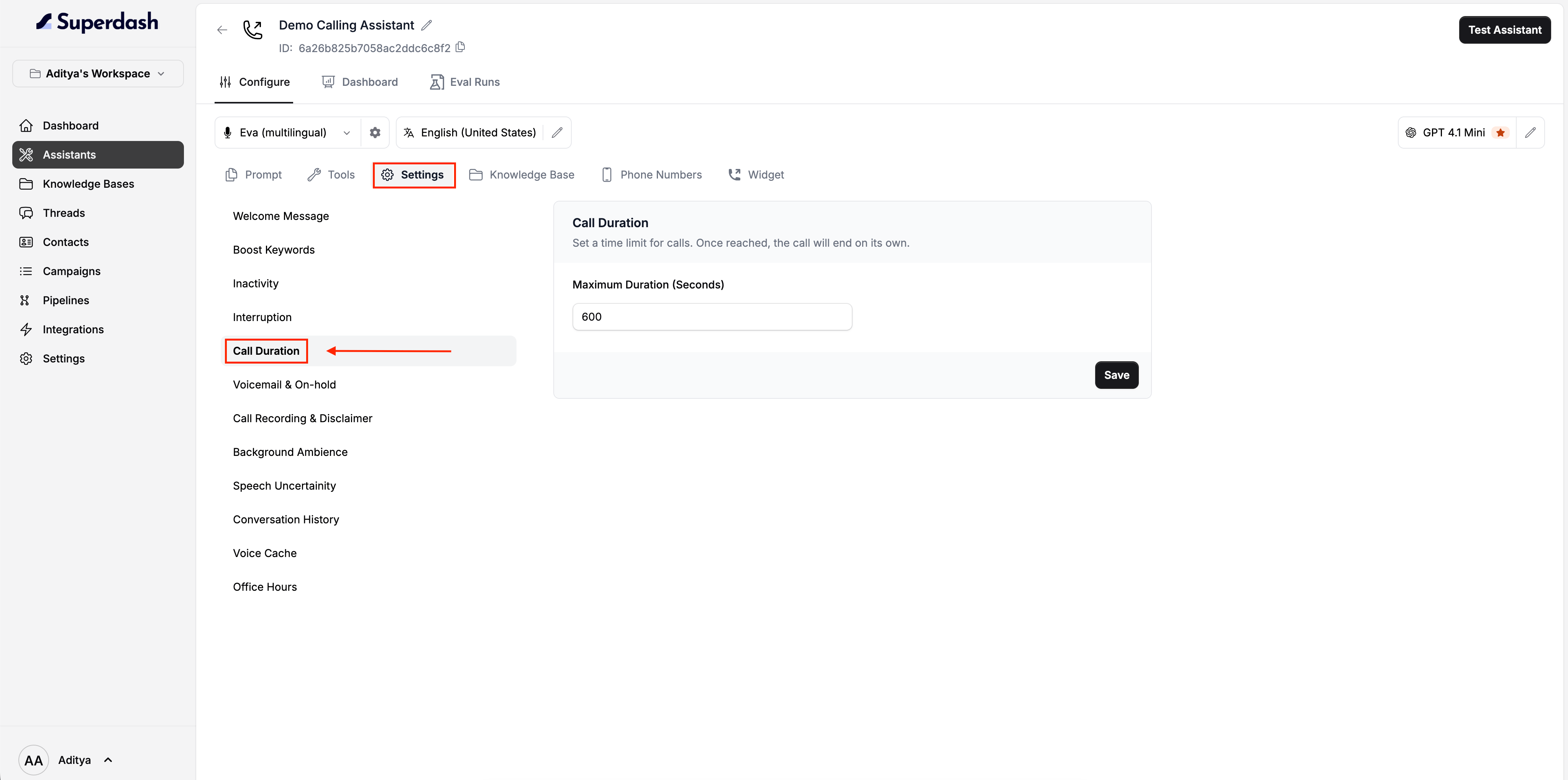 Locate the **Maximum Duration (Seconds)** input field. Enter your desired call length in seconds.
**Quick Conversion Guide (Minutes to Seconds):**
* 5 minutes = `300`
* 10 minutes = `600` (Default)
* 20 minutes = `1200`
* 30 minutes = `1800`
Click the **Save** button to apply the new limit.
**🎉 Congrats!** You have successfully updated the call duration for your AI assistant.
Locate the **Maximum Duration (Seconds)** input field. Enter your desired call length in seconds.
**Quick Conversion Guide (Minutes to Seconds):**
* 5 minutes = `300`
* 10 minutes = `600` (Default)
* 20 minutes = `1200`
* 30 minutes = `1800`
Click the **Save** button to apply the new limit.
**🎉 Congrats!** You have successfully updated the call duration for your AI assistant.